


Smart Remote: Universal TV
4.496.00 Reviews
App Specs
- Version
- 18.0.0
- Updated On
- License
- Free
- Downloads
- 10,000+
- Developer
- Shadow soft
- Categories
- Libraries & Demo
- Platform
- Android
Screenshots
 Analysis by AppCompare
I tested Smart Remote: Universal TV as a simple way to manage a television from a phone, and the main appeal became clear very quickly: it puts the idea of a spare remote in your pocket. That sounds modest, but it matters when the physical controller is buried under cushions, has unreliable buttons, or is being used by someone else. The app is free, aimed at Everyone, and belongs to the Libraries & Demo category, although its practical role is much closer to a household utility than a reading or demonstration app.
My overall impression is positive, with one important qualification: this is most useful when your television and phone cooperate smoothly. A phone-based remote cannot replace the physical controller in every situation, and it cannot magically solve compatibility problems. Still, when the connection works, the convenience is immediate. I could keep the phone beside me, adjust the television without searching for another device, and treat casting or mirroring as part of the same general living-room workflow rather than as a separate chore.
Why the remote-and-screen capability matters
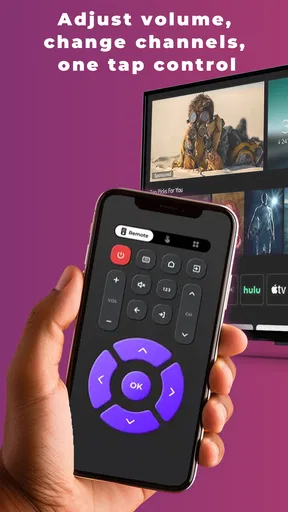
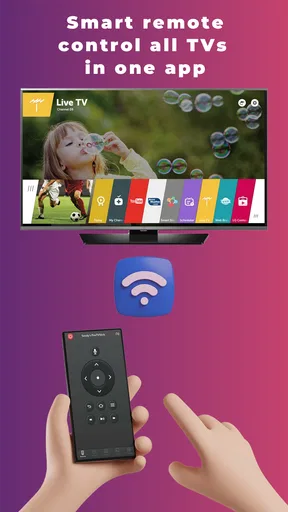
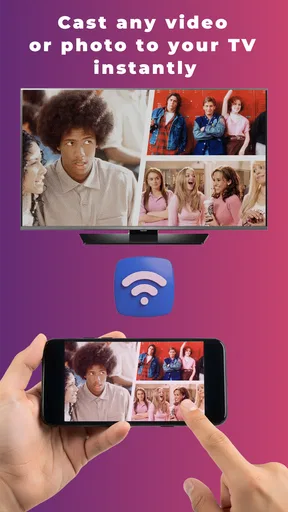
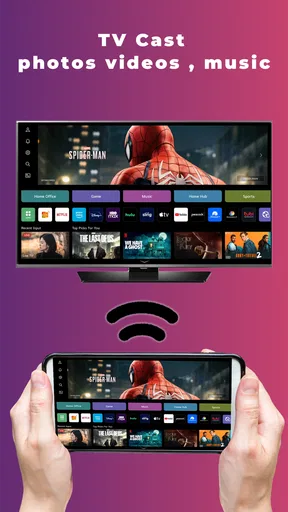
The strongest verified capability here is the combination of TV control, casting, and screen mirroring. I would not judge the app merely as another collection of virtual buttons. Its real value is that it brings three related actions together: changing what the television is doing, sending content toward the larger screen, and showing the phone’s display there when that is the more practical option.
That combination changes how I think about a smart-TV utility. A basic remote app is useful when I need volume, navigation, or playback control. Casting is useful when I want to move selected content from the phone to the television. Mirroring is useful when the content does not offer a convenient cast button or when I want the larger display to follow the phone more directly. Having those possibilities in one place reduces the need to switch between a physical remote, a separate casting tool, and the television’s own menus.
In everyday use, the benefit is less about replacing every function and more about reducing small interruptions. I can start with the phone as a controller, move to casting when I find something worth watching, and use mirroring for content that is easier to display from the handset. The practical advantage is continuity: the phone remains the starting point instead of becoming only a temporary remote.
That does not mean every television behaves identically. Smart-TV ecosystems differ, and the experience depends on the devices being able to communicate. I recommend thinking of this app as a convenient bridge rather than a universal guarantee. Its name sets a broad expectation, but real-world usefulness still depends on the television, the phone, and the connection between them.
What I noticed about the control idea
A phone remote has a different feel from a physical controller. There is no tactile confirmation when a button is pressed, so I found myself looking at the screen more often than I would with a traditional remote. That is a small adjustment, but it matters during fast navigation or when I am trying to change something without taking my eyes off a program.
Worth Reading Before You Choose

Flipboard Shows What News Apps Must Do Beyond the Feed

Switching to Android Auto Means Rethinking Your Driving Routine

Google Calendar Makes a Crowded Week Easier to Manage

Ludo King Makes the Most of the Minutes Between Plans

Baby Panda World Brings Quick Play to Modern Phones, but Its Game Library Feels Busy

ESPN’s Live Game View Makes Following Close Games Easier
On the other hand, the phone is usually close at hand. I can use it from the sofa, carry it to another room, and avoid the familiar search for a missing controller. It is also easier to keep a phone charged than to discover that a remote’s batteries have finally run out. For households where the physical remote is regularly misplaced, this convenience can outweigh the less satisfying button feel.
How it works in practice
My advice is to begin with the simplest possible setup. Keep the phone and television ready, open the app, and look for the television connection or control route offered by the interface. If the two devices do not recognize one another promptly, I would first check that they are using the same home network and that the television is awake rather than fully powered down. Those are ordinary troubleshooting steps, but they prevent a lot of unnecessary frustration.
Once control is available, I would test a few basic actions before relying on the app for a longer viewing session. Try navigation, volume, and playback first. This confirms that the connection is stable and gives you a chance to learn how the touch controls respond. A short test is especially worthwhile before handing the phone to a child or using the app as the only way to manage the television.
The casting and mirroring choices deserve separate attention. Casting generally makes more sense when an app or service already knows how to send selected content to the television. In that situation, the television can display the chosen material while the phone remains available for other tasks. Mirroring is the broader option: it follows the phone’s screen, which can be useful for photos, demonstrations, browsing, or content that does not offer a dedicated cast path.
That difference leads to one of my most useful tips. I would not mirror by default simply because it is available. Mirroring keeps the phone’s display involved, so notifications, orientation changes, and interruptions can become more noticeable. When the content supports casting, I would choose casting first and reserve mirroring for material that genuinely needs the phone’s screen reproduced. This makes the viewing experience cleaner and usually leaves the handset more usable.
A second practical tip is to treat the app as a backup before treating it as a replacement. Keep the physical remote nearby during the first few sessions, particularly if you need to change deeper television settings. The phone is excellent for common actions and quick access, but a traditional controller may still feel faster for functions that depend on dedicated buttons or a specific television menu.
The app is free, which makes experimentation easy. I could install it without turning the decision into a purchase, and that matters because compatibility is something I would rather test personally than assume from a description. It supports devices running Android 7.0 or later, so owners of older compatible phones may still be able to try it rather than needing a recent handset.
Shadow soft is the developer behind the app, and the current version is 18.0.0. Those details are useful when checking whether the installed copy is current, especially if a connection issue appears after a television or phone update. I would make sure the app is updated before diagnosing a problem as a device mismatch.
The living-room scenario where it makes the most sense
The best scenario I found is an ordinary evening when the remote has disappeared and several people are already settled in. Instead of stopping everything to search, I can use the phone to wake the viewing routine, adjust the sound, and move through the television interface. If someone sends me a video or I find a photo I want everyone to see, I can then switch from control to casting or mirroring without reaching for another tool.
This is also useful when the phone owner is the person who manages the viewing session. A parent can keep the controller available while a child watches, or a guest can operate the television without learning a complicated set of physical buttons. I would still supervise younger users, not because the age rating is restrictive—it is rated Everyone—but because a phone connected to the television can change what appears on the screen very quickly.
Another good use is a small presentation at home. If I need to show a sequence of images or demonstrate something visible on the phone, mirroring can be more direct than trying to find a television app that supports the same material. The trade-off is that the phone must remain part of the presentation, so I would disable distractions and hold the handset steady before beginning.
For shared homes, the app can also be a convenience layer. One person may prefer the physical remote, while another prefers a phone. The app does not need to replace the old method for everyone to be worthwhile. It can simply provide a second route when the usual controller is unavailable or when sending phone content to the television is more natural.
Where the trade-offs become noticeable
The biggest limitation is the gap between the word “universal” and the variety of real television systems. A phone remote depends on communication with the target television, and not every setup will respond in exactly the same way. I would not install this expecting guaranteed control of an unknown television in a hotel, classroom, or rental property. It is better suited to a television you use regularly and can test at home.
There is also a dependency on the phone. A physical remote can be used without tying up the handset, while this app occupies the device you may want for messages, calls, browsing, or music. That matters most when mirroring, because the phone’s display becomes the source of what appears on the television. Casting is generally the better choice when I want the phone to remain available, but the right option depends on the content and the television’s response.
Touch controls can introduce accidental presses. A thumb can land on the wrong area, and a phone screen gives less physical feedback than a remote with distinct buttons. I found that deliberate taps were more reliable than quick repeated gestures. If I were handing control to someone unfamiliar with the app, I would show them the basic actions first rather than assuming the layout would feel instantly obvious.
Connection interruptions are another realistic concern. If the television disappears from the app, repeatedly tapping controls will not solve the underlying problem. I would pause, check the network relationship, confirm that the television is still available, and reopen the connection if necessary. This is one reason I would keep the physical remote accessible during important events, such as a live broadcast or a presentation.
The app is not the right choice for someone who wants a fully tactile, button-first experience. It is also not ideal if the main goal is advanced television configuration and the physical controller already handles those menus comfortably. In those cases, the manufacturer’s own remote solution may be a better fit, particularly when it is designed specifically for one television family rather than trying to serve many models.
Likewise, people who only want to cast from one particular streaming service may prefer using that service’s built-in cast control. A dedicated route can be simpler when the task never changes. The advantage here appears when control, casting, and mirroring are all relevant—not when I need only one narrowly defined action.
Three workflow lessons I would keep
First, I would pair the app with a clear household routine: use the phone for quick control, cast when the content supports it, and mirror only when the phone’s full display is necessary. That small rule avoids using the most intrusive option for every task.
Second, I would test the app from the place where it will actually be used. A connection that works beside the television may not feel equally convenient from another room, and a phone that is easy to hold for a minute may become uncomfortable during a long session. Testing in the real viewing position reveals whether the app is genuinely practical for your household.
Third, I would keep the app updated and remember the installed version when troubleshooting. Since the current release is 18.0.0, checking for updates is a sensible first step before blaming the television. This is not exciting advice, but it can separate a temporary software issue from a genuine compatibility problem.
Who gets the most from it
I think the strongest audience is people who frequently misplace the physical remote, households that want a convenient second controller, and users who move content from a phone to a smart television. It is particularly appealing if you already keep your phone nearby and prefer touch controls to searching for another device.
It also makes sense for someone who wants to experiment without paying first. The app is free, and its Everyone rating makes it approachable for a general household. Its reach is reflected in an average rating of 4.4 from around 500 ratings, with over 10 thousand installs. I read that as encouraging interest rather than proof that every television will work perfectly; personal compatibility testing still matters more than popularity.
I would be more cautious recommending it to a person who rarely uses smart-TV features, dislikes phone-based controls, or needs guaranteed operation with unfamiliar displays. For those users, a dedicated physical remote or a television maker’s own control app may be less surprising. The best alternative depends on whether reliability, tactile feedback, or broad phone-to-screen convenience is the priority.
After trying the app, I see Smart Remote: Universal TV as a useful household backup that becomes more valuable when casting and mirroring are part of the same routine. It is not a magic replacement for every remote, and its success depends on the devices communicating properly. But when that foundation is in place, it removes small annoyances and gives the phone a practical role in the living room.
My recommendation is straightforward: if you own a compatible smart television, install it and test the basic controls before deciding whether it deserves a permanent place on your phone. Use casting for focused content, mirroring for phone-dependent material, and keep the physical remote available until you trust the connection. For the right household, that balance makes this free utility genuinely convenient rather than merely another remote app.
Pros
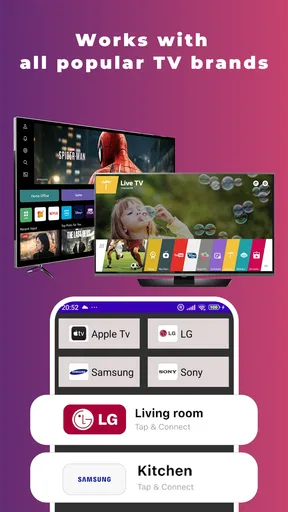
- Works with many popular TV brands and models.
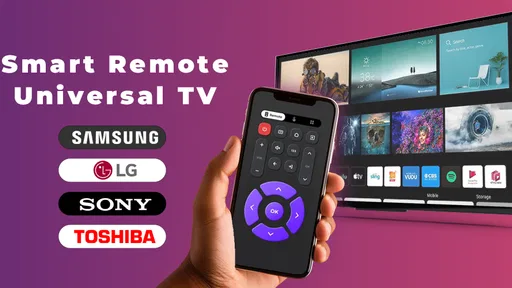
- Simple remote layout makes basic controls easy to find.
- Useful replacement when the original remote is misplaced.
- Quick access to volume
- channels
- and power controls.
- Compact app avoids carrying an extra physical remote.
Cons
- Requires an IR blaster or compatible smart TV connection.
- Some features may be limited to specific TV models.
- Connection setup can be confusing for first-time users.
- Ads may interrupt use in the free version.
- Performance depends on phone hardware and network stability.
FAQs for Smart Remote: Universal TV
What is Smart Remote: Universal TV, and how does it work?
Smart Remote: Universal TV is a mobile application designed to control compatible televisions and, in some cases, other home entertainment devices from an Android or iOS phone. It generally communicates through the same Wi-Fi network, using the phone’s infrared sensor when supported, or connecting directly to a smart TV over the local network. Setup and available controls can vary depending on the television brand and model.
Is Smart Remote: Universal TV compatible with every television?
No remote-control application can guarantee compatibility with every television. Smart Remote: Universal TV may support many popular brands, but functions depend on the TV’s operating system, model, network features, and whether your phone includes an infrared emitter. Smart TVs usually require both devices to be connected to the same Wi-Fi network, while older televisions may only work when the phone has compatible infrared hardware.
Does Smart Remote: Universal TV require Wi-Fi or an internet connection?
The connection method depends on your phone and television. For smart-TV control, the app typically needs the phone and TV to be connected to the same local Wi-Fi network, although continuous internet access may not always be necessary after pairing. If the app uses infrared, Wi-Fi may not be required. Public, guest, or isolated networks can prevent the devices from discovering each other.
Is Smart Remote: Universal TV free to download and use?
The application may be available as a free download, but some versions can include advertisements, optional subscriptions, or paid features. Advanced controls, removal of advertising, or access to additional device profiles may depend on the app’s current pricing model. Before installing, review the store listing carefully and check the subscription terms, trial duration, and cancellation instructions to avoid unexpected charges.
What should I do if the app cannot find or control my TV?
First, confirm that the television is switched on and that both devices are connected to the same Wi-Fi network. Disable VPNs or guest-network isolation, restart the app and TV, and allow any requested permissions for local-network discovery. If your phone relies on infrared, make sure the sensor is present and aimed toward the television. Compatibility limitations may still prevent certain models or functions from working.


